 ClientClip help
For what each button in the side panel does, see The side panel at a glance.
Find a client
- Click the ClientClip icon in the toolbar. The side panel opens and loads the latest quote requests.
- Type part of the client's name in the search box. The list shows the clients that match.
- Click the client. Their card opens.
If the side panel says Sign in to ClientClip, sign in first: see Signing in and out.
- The search looks through every client on this computer, even older ones the list doesn't show yet. It also matches other drivers in the household and the second name on a home's deed.
- With many clients on this computer, the first rows show first, and "Loading the rest of your clients…" shows at the end of the list for a moment. A search you type meanwhile shows "Searching…" until every client is in, and a client you click opens then.
Each row in the list shows:
| Part of the row | What it tells you |
|---|---|
| A small picture at the start | The line asked for: a car for Auto, a house for Homeowners, a stack of layers for several |
| The name and one line of details | Who the client is |
| The right end | When the request came |
| A yellow dot with, for example, "3 to check" | The card has things to check |
The line under the search box says how many clients this computer keeps, for example "340 clients", and when the list last loaded, for example "Updated 3:14 PM".
Check for new requests
Click Refresh, the circular arrows at the top of the side panel. Point at it to see its name and when the list last loaded: "Refresh: get the latest quote requests (updated 2:07 PM)".
Read a client's card
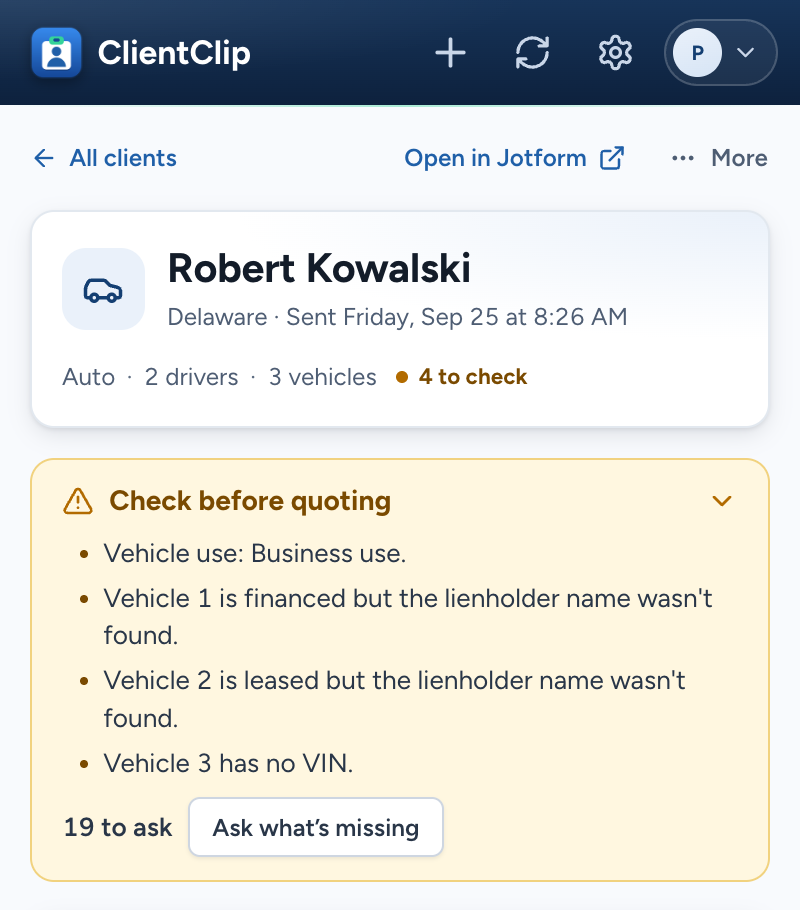
- Click the yellow Check before quoting box at the top of the card to open it, and read it first.
- Click a tab, such as Drivers, to see that part of the request.
The box starts folded into one line that says how many things it holds, for example "3 to check · 2 to ask". Click its title to open it, and again to fold it. It stays the way you left it on that card until you close the side panel.
Each line has its own tabs. For example:
| Line | Tabs |
|---|---|
| Auto | Client, Drivers, Vehicles, Coverage, Notes |
| Homeowners | Client, Property, Household, Coverage, Notes |
| Watercraft | Client, Boats, Drivers, Coverage, Notes |
| Umbrella | Client, Drivers, Property, Boats, Household, Coverage, Notes |
On a card with several lines, the first line's tabs come first, then any the other lines add. For example, a Homeowners and Umbrella card shows Client, Property, Household, Coverage, Notes, Drivers and Boats.
Answers to your office's own questions show under Office fields on the first tab, or at the end of the driver, vehicle or other item they're about: see Office fields on a client's card.
To fix a value that's wrong or missing, click Edit on that part of the card: see Changing a client's card.
Change how cards look
In Settings → Display, you can switch cards from tabs to one long page, the text to a larger size, and the colors to Light or Dark. The standard choice, Match this computer, follows the computer's own light or dark mode. Choices save as soon as you click them, and an open side panel changes right away.
Copy a value
Click any value on the card, or the copy button beside it. The button turns green with a check for a moment, and a short note says what was copied, for example "Copied: 04/12/1987".
To copy the same value written another way, such as a birthday without slashes:
- Click Other formats under the value.
- Click the one you want to copy.
What you copy stays on the computer's clipboard (where copied things wait to be pasted) until something else is copied. ClientClip doesn't clear it.
Troubleshooting
If the note says "Couldn’t copy that. Click it again.", nothing was copied. Click the value again.
The top of a card and the More menu
The row at the top of an open card has:
- All clients, to go back to the list. Scrolled down, the row shows the client's name instead, and the arrow goes back.
- Pin, to keep the client at the top of the list. Scrolled down, it's the pin icon. See Sorting, filtering and pinning clients.
- More, at the right end, for everything else you do now and then.
The More menu only lists what you can do with that client. Click More again, press Esc or click anywhere else to close it.
| In More | What it's for | How-to |
|---|---|---|
| Check for changes | Read the client's request again | Checking a client's request for changes |
| Open in Jotform | See the request in Jotform, on a client from Jotform | |
| Export | Move the client to another computer, or keep a copy | Exporting and importing a client |
| Download PDF | File a filled-in copy of the quote request | Saving a quote request as a PDF |
| Make a locked file | Send the client to a coworker | Sending a client to a coworker |
| Read a file into this client | Read a file into this client's card, when your office uses AI reading | Reading a file |
| Add to a household… | Put this card on another client | When a client's requests come in apart |
| Remove (last) | Take the client off this computer when you're done | Removing a client |
Add a new client
- By phone: click Take a request above the client list. See Taking a request by phone.
- From a file, such as a scanned application: click Read a file above the client list. See Reading a file.
With a client's card open, or the list scrolled down, click Add at the top of the side panel to see the same choices.
You see Read a file only when your office's plan includes AI reading; if it's faded, see When Read a file is faded.
Look up a VIN
When your office has turned on the VIN lookup, you can get a vehicle's details from its VIN.
- Open the client's Vehicles tab.
- Click Look up VIN under the vehicle. The details show in the vehicle's From the VIN (NHTSA) row.
- If your browser asks whether ClientClip may reach NHTSA, click Allow. This happens the first time.
ClientClip asks the free NHTSA (U.S. government) VIN service about that VIN and sends nothing else about the client.
- The card's own year, make and model stay as they were, beside the details, under As written.
- If the VIN says a different year or make than the card, the Check before quoting box tells you.
- A vehicle with no VIN, or one that doesn't look valid, has no Look up VIN button.
- If you change a vehicle's VIN on the card, its VIN details are cleared: click Look up VIN again (see Changing a client's card).
| Message | What to do |
|---|---|
| "ClientClip needs your OK to reach the NHTSA VIN service. Click the button again to allow it." | Click Look up VIN again and choose Allow. Nothing was sent. |
| "NHTSA flagged something about this VIN; check it." | NHTSA read the VIN but isn't sure of every detail. Compare them with the card's values. |
| "NHTSA couldn’t decode this VIN." | Check the VIN with the client. |
| "The NHTSA VIN service had a problem. Try again later." | Wait a few minutes, then click Try again. |
| "Couldn’t reach the NHTSA VIN service. Check your internet connection." | Check you're online, then click Try again. |
| "There’s no room for more client details on this computer, so the details NHTSA sent weren’t kept." | This computer has no room left. The card is as it was. |
| "This client’s details are too long for ClientClip to keep the details NHTSA sent." | The card is as it was. |
| "ClientClip couldn’t keep the details NHTSA sent. Click Look up VIN to try again." | Click Look up VIN again. |
How long your clients stay
ClientClip keeps your clients on this computer until you remove them or click Delete everything. They stay, with your changes, when you close the browser, when ClientClip updates and when you sign out.
They're kept encrypted (scrambled so that only your own sign-in can open them). Someone else who signs in on this computer never sees your clients, and you never see theirs.
There are two exceptions:
- At 1,000 clients, the oldest ones nobody opened make room for newer requests (see How many clients a computer keeps).
- Your office can choose to delete clients nobody has worked on for a while (see How long your office keeps clients). It's off unless an owner or admin turns it on.
Signing out or stepping away locks your clients until you sign in again: see Signing out and When you step away.
Delete everything
Delete everything erases every client from this computer at once. It's in the menu under your initials, below Sign out (when clients are kept), and in Settings → Client data. Both say: "Erase every client’s details from this computer. Requests stay where they came from."
- Click your initials at the top right of the side panel.
- Click Delete everything. A box says what goes, for example "Type DELETE to erase 42 clients and 2 drafts".
- Type
DELETEin capitals and click Delete, or click Cancel to keep them. The side panel says "Client details deleted from ClientClip", and Settings shows "Deleted".
Important
Changes you made to cards are erased too, and there's no Undo. A request from Jotform stays in Jotform, but a client made on this computer is gone.
- If what goes changed since the box opened, it says the new words and empties instead of erasing. Read them, then type
DELETEagain. - Settings → Client data says "Clients are kept on this computer, encrypted, until you remove them or delete everything. Signing out locks them."
- While your clients are locked or can't be opened, it isn't in the side panel's menu, and you can't click it in Settings.
When your clients can't be opened
If the side panel shows a message in place of your client list, see When your clients can't be opened. Nothing is deleted.
If a message says you need a newer version of ClientClip, on the list or on one card, see When you need a newer version. You can still remove such a card (Undo puts it back as it was), and your office's keep time deletes it like any other card.
Sorting, filtering and pinning clients
Keep the clients you're working on at the top, and sort or filter the list to find others faster.
Pin a client
- Open the client's card.
- Click Pin at the top of the card. The side panel says "Pinned to the top of the list".
The client shows under Pinned, above everyone else, whatever you sort, filter or search for. To take them off the top, open the card and click Unpin: the side panel says "Unpinned".
- Pinning counts as working on the client, so your office's keep time starts again from then.
- A card a newer version of ClientClip saved has no Pin (see When you need a newer version). If it was pinned, it stays under Pinned.
- A pin isn't saved in an exported file: an imported client arrives unpinned.
Sort the list
- Click the sort button, at the right end of the line under the search box that counts your clients. It names the sort the list shows, at first Newest first.
- Pick a sort from the Sort by menu. The one in use has a check.
| Sort | What it shows |
|---|---|
| Newest first (the standard choice) | The latest requests first, under a heading per day, with older clients you worked on under Earlier |
| Oldest first | Every client, the oldest request first |
| Name A–Z | By last name, under a heading per letter; clients with no name come last, under No name |
| Line | Grouped by the line asked for, for example Auto or Auto, Homeowners |
| Recently worked on | The clients you opened, edited, sent or pinned most recently first |
| Deleted soonest | Only when your office deletes clients not worked on for a while: the next ones to go first |
ClientClip remembers your sort on this computer, for you only, until you pick another. Any sort but Newest first shows every client on this computer, so with many clients the side panel says "Loading your clients…" for a moment as it opens.
Filter the list
- Click Filter, beside the search box.
- Click the choices you want. The line under the search box says how many clients show, for example "12 of 340 clients".
- Click Filter again to close the box.
You can filter by state, by line, by how the request came in (Came in through) or by status: Drafts, Pinned, Has things to check, Sent to a CRM, Not sent to a CRM or Deleted within a week.
- Only choices some client has are offered. A group shows only when it has a choice to make, for example State only when your clients live in two states or more.
- Choices in the same group add clients (Texas or Ohio). Choices in different groups narrow them down (Texas and sent to a CRM).
- Each choice that's on shows under the search box, such as "State: TX" or "Drafts", even with the box closed. Click a choice again, or the × on it, to take it off, or click Clear filters to see every client again.
- On a narrow side panel, Filter shows only its icon, with how many choices are on.
- Filters work together with the search box. They last while the side panel is open and go when you sign out.
| Message | What to do |
|---|---|
| "No clients match these filters." | Take a choice off, or click Clear filters. |
| "This client’s details were erased from ClientClip, so nothing changed." | The client was removed, perhaps in another window. Load the quote requests again if you still need them. |
| "A newer version of ClientClip saved this card, so you can’t change its pin here." | Your browser updates ClientClip by itself; try again later. |
| "There’s no room on this computer to save the pin. Remove a client first, then try again." | Remove a client you're done with, then click Pin again. |
| "ClientClip couldn’t save the pin, so nothing changed. Try again." | Click Pin (or Unpin) again. |
Taking a request by phone
When your office's plan includes ClientClip's built-in forms, you can take a quote request while you talk with a new client, one short screen at a time, and make their card at the end. Everything stays on this computer: as the last screen says, "The card is kept on this computer only. Nothing is sent."
- Click Take a request above the client list. With a client's card open, click Add at the top of the side panel first. The form opens with A new client picked under "Who is it for?".
- Under "What are they looking for?", click each line the client wants. The screen says how long the form is, for example "Auto and Homeowners: 10 steps".
- Click Start. As you type, the top of the form says "Saving…", then "Saved".
- Ask the questions on the step.
- Click Next. It names the next step, for example Next: Drivers.
- On the last step, Review, check what's left.
- Click Make client card. The client's card opens and says "Card made for Riley Example".
- You only see Take a request when your office quotes at least one line with ClientClip.
- For a client who isn't in your list yet, type their first and last name in the search box. When nobody matches and no filter is on, the line under it becomes one button, for example Take a request for Jordan Sample. Click it or press Enter, and the form starts with their name. Check the spelling on the first step. The name is left out if you pick Someone in my list instead.
- The lines question says "Pick all that apply, or none yet. Add more on any step." Only the lines your office quotes are offered; an owner or admin changes them in Settings → Quote forms.
- Cancel, before you start, keeps nothing. From Start on, the request is kept on this computer as a draft, and your answers are saved as you type.
- Back goes to the step before. Each question uses the same words as the card. Questions about a policy also name it, for example Current auto company.
- Picked the wrong client or lines? On the first step, click Back, change who it's for or the lines, then click Start. What you typed stays; what a client's card filled in comes off if you change who it's for, along with anything the form copied from it into other boxes (their name on a driver or as a vehicle's owner, their home address on the home). Cancel goes back to the first step with nothing changed.
While you ask the questions
- No line picked yet? The form asks the questions every line asks about the client, and says "No lines yet. Add one when you know." Add a line with Add a line before you make the card: until then, Review says "Add a line to make the card".
- When the client doesn't know: click the small Not sure at the right of the question's name, on questions that offer it. The question folds into one line that says "Client didn’t know", and Review lists it with a Not sure tag. To answer it after all, click Answer now on that line (or Not sure again).
- Short questions with a few answers, such as Yes or No, show their answers as buttons: click one, or use the arrow keys.
- Follow-up questions: a question that only matters after an answer, such as more about a ticket, opens right under it. A question asked only because of a driver's age says why, for example "Because Jordan is under 25".
- Drivers, vehicles and other items: each item has its own heading; click a heading to open it, one at a time. Click Add driver (or Add vehicle, Add boat and so on) for another one, and Remove, then Click again to remove, to take one off. If the client has none, for example after you answer No to "any losses?", the group says None.
- A vehicle's owner, or the driver in a loss: pick the person from the list of people already on the request. Pick Someone else to type another name. If you change that person's name later, the pick follows; if they come off the request, the pick empties.
- The home's address: on a request with Auto and a home line, the home's address fills in from the home address you typed in About the client. On any other property, click Same as home address under the address to copy it.
- Answers the request already gives: some questions open answered, so you only check them. With a home line on the request, Home ownership is answered by the line (Homeowners means "Owns their home"), State of residence comes from the home address, and the Homeowners insurance you type in About the client becomes Current home company. Change any of them if the client says otherwise. If you take the home line off again, Home ownership empties so you can ask.
- An umbrella with Auto on the request: the underlying auto company and liability limits fill in from Auto's. If the limits now are blank, the limits wanted fill in instead. The household's counts start from what the request lists: drivers, drivers under 25, and cars or motorcycles. Ask the client whether the household has more, and change the number if it does.
- The client as a driver: on Drivers, click Add Pat Example (the client's own name) to add them with what you already typed about them. A second name on the deed has its own button. If you add a driver yourself and pick Self as the relationship, the empty boxes fill in the same way. Change the client's name or birth date later and their driver follows, unless you typed over it.
For keys that move you through the form, see Keyboard keys.
Add or remove a line mid-call
- Click Add a line at the top of the form. A sheet lists the lines on the request, each with Remove, and the other lines your office quotes.
- Click a line to add it, or Remove on a line to take it off. A line you add shows a check, New and what it adds, for example "Umbrella adds 3 steps before Wrap-up and 1 question in Drivers: 13 steps".
- Click Update lines.
- Click a line you just added again to take it off.
- Update lines is faded until something changes. Cancel, or Esc, changes nothing.
- A line you add puts its new steps just before Wrap-up. A step you already finished that gained questions shows "1 new".
- Removing a line hides its steps. As the sheet says, "Its answers are kept while this request is open and left off the card."
- Right after a change, click Undo in the note to put the lines back as they were.
Move between steps
Click the step button at the top, for example "Step 3 of 10 · Vehicles", to see every step with what's left on it ("2 to ask", "1 to check", "1 not sure"). Click a step to go there, or click Close (or press Esc) to shut the list.
The bar of segments under the name shows the same: finished steps, the one you're on, and, in yellow, finished steps with something to ask or check.
Wrap-up
Wrap-up asks the last questions, each only on the lines that ask it:
- "Who at the agency should get this quote?": type a name, or pick one given on earlier requests taken here. It's on the card as Quote goes to.
- "How did they hear about us?": pick from your office's list (owners and admins keep it: see Your office's answers to "How did they hear about us?"). With no list yet, type the answer.
- Referred by and Comments.
- Other insurance to quote: click a line your office quotes to add it to the request (its steps go before Wrap-up). For a line your office doesn't quote here, click it, or click Other and type it, to note it on the card.
- Form filled in by: type your name, or click a Use button with a name given on earlier requests taken here, for example Use Dana Example. Auto doesn't ask it.
Review
Review shows, in order:
- "Ask before you hang up": everything still open while the client is on the phone.
- The call permissions, such as OK to call or text. If one wasn't asked, answer it right there; an answered one shows when, for example "OK to call or text: Yes, 10:44 AM".
- Each blank question (tagged To ask) and each question the client didn't know (tagged Not sure), with its step under it. Click Answer to answer it without leaving Review. A few questions show Open step instead, which takes you to their step.
- "1 to check": the same checks the card's Check before quoting box shows, each with its step.
- Every step with a short summary and Edit, to go back and change it.
You can make the card with questions still blank; the card shows what's there.
A request for someone already in your list
When a client you already have calls for more insurance, take the request into their card instead of making a second one.
- Click Take a request above the client list. With a client's card open, click Add at the top of the side panel first.
- Under "Who is it for?", click Someone in my list.
- Type part of their name (or a driver's) in "Search by client or driver name".
- Click the client. The screen says "Adding to Sam Example’s household"; click Change to pick someone else.
- Pick the lines they want. Lines already on their card say "On this card"; you can still pick one, for example for a second home.
- Click Start. About the client is already filled in from their card, under "Still right? These answers are from Sam Example’s card. Change only what changed."
- Ask the client and change only what's new. The call permissions, such as OK to call or text, are never filled in: ask them on every call.
- Click Add to this request on an item under "On their card", on steps with drivers, vehicles, properties or boats, to bring it in without typing it again. It then says "In this request".
- Go to Review and look over the box "Adding to Sam Example’s household":
- "Which items are the same?": each driver, vehicle or property in this request, matched to the one on their card (for example Same as Driver 1 — Sam Example), or A new driver. Change a match if it's wrong.
- "Changed from their card": each answer the client gave differently, with what their card says and what they said now. Use the new answer is picked; click Keep the card’s answer to keep the old one.
- Click Add to Sam Example’s household. Their card opens and says "Added to Sam Example’s household".
The request is now one of the requests on their card.
Started as a new client by mistake? If what you type (an email, a phone, or a name at the same street) matches a client you already have, About the client says "Maybe the same client as Sam Example …". Click Use their card to add this request to them instead (what you typed stays), or Not the same to hide the note. When you click Make client card, the new card remembers it, so it won't suggest that client either.
Troubleshooting
If the request can't be added, Review says why and the request stays a draft. For example, their card was removed meanwhile, sending them to AgencyZoom hasn't finished, or their card already has 6 requests. Where it can still be its own card, click Make their own card instead, then Make client card.
Drafts
A request you haven't made into a card yet is a draft. Drafts sit at the top of the list, above Pinned, under Drafts (for example "2 drafts"), in every sort. Click a draft to go on from where you stopped.
Each draft's row shows:
- The client's name, or "New client", and a Draft label.
- Where you stopped and the lines, for example "Stopped at Vehicles · Auto, Homeowners".
- Whose card it's for, when you picked someone in your list ("Adding to Sam Example’s household").
- When you last worked on it.
The search box finds drafts by name, and Filter → Status → Drafts shows only drafts.
- Close at the top of the form asks "Leave this request?": click Keep as a draft to go back to the list with the draft waiting there, or Keep working (or press Esc) to stay. If you close before typing anything after Start, it just closes and keeps no draft.
- If the side panel closes mid-call (or the browser does), your answers are already saved. When you open it again, the list says "Riley Example’s request was saved as you typed. It’s in Drafts."
- A draft counts as one of this computer's 1,000 clients, but never makes room for newer requests. It goes when you make its card, remove it, click Delete everything, or your office's keep time passes since you last worked on it. It's never in an exported file.
To remove a draft:
- Open the draft.
- Click Close at the top.
- Click Delete this request. The list says "Removed the draft for Riley Example", with Undo.
Tip
Click Undo within 6 seconds to put the draft back.
| Message | What to do |
|---|---|
| "No room for another client on this computer (1,000). Remove clients you’re done with, then try again." | Remove clients you're done with, then click Take a request again. |
| "This computer’s storage is full, so the request wasn’t started. Remove clients you’re done with, then try again." | The computer's disk is full. Remove clients you're done with, then try again. |
| "Couldn’t save. Your answers are still here." | Click Try again next to it. Keep the side panel open until it says "Saved". |
| "This request was changed in another window. Use the latest to go on from it." | Someone (or you) changed this draft in another ClientClip window. Click Use the latest. |
| "This computer has no room for more client details, so your last answers weren’t saved. They’re still here. Remove clients you’re done with, then try again." | Remove clients you're done with, then click Try again. |
| "This request is too long to save. Shorten some answers or remove some items. Your answers are still here, not saved." | Shorten long answers or remove items you don't need. |
| "Your office no longer quotes Flood with ClientClip. Remove the line to make the card." | Click Add a line, remove that line, then make the card. |
| "Your office’s plan doesn’t include taking requests here now. You can remove this draft, or ask an owner or admin." | Remove the draft, or ask an owner or admin. |
| "Robert Example already has a card with this request." | The card was already made, perhaps in another window. Find the client in the list. |
| "This request has more drivers than one client card can show. Remove some, then try again." | Remove the extra items, then click Make client card again. |
| "This computer has no room for more client details. Remove clients you’re done with, then try again. This request stays a draft." | Remove clients you're done with, then click Make client card again. |
| "This request was changed in another window. Use the latest, then make the card again." | Click Use the latest at the top of the form, check Review, then click Make client card again. |
| "ClientClip couldn’t save the card. Your answers are still here. Try again." | Click Make client card again. |
| "Couldn’t remove the draft. Try again." | Click Delete this request again. |
When a card can't be made, the request always stays a draft with your answers.
Asking what's missing
Every card shows what ClientClip's own form still has to ask, whatever the request came from (a website form, a file, a phone call). It's at the end of the yellow Check before quoting box, for example "4 to ask", or "4 to ask · 2 Not sure" when the client didn't know some answers. A client from a website form often has several, because online forms don't ask everything.
To ask them, for example when you call the client back:
- Click the box's title to open it.
- Click Ask what's missing next to the count. The form opens on that client's card, with only the steps that have something to ask.
- Ask each question and type the answer, or click Not sure if the client doesn't know. Answers are saved as you type: wait for "Saved".
- Click Next to go on.
- Click Done when you're finished. You're back on the card, and the count goes down.
- Answering a question can open a follow-up; it shows under it.
- To jump to a step, click its name at the top, such as "Step 2 of 3 · Drivers", and pick it from the list.
- Answers the client already said they weren't sure of are skipped. To ask them again, click Ask Not sure answers again at the top. When those are all that's left, the form starts with them.
- To add a driver, vehicle or other item the client mentions, click Add driver (or Add vehicle and so on) under that list.
- Not sure isn't offered on a value you emptied on the card, or picked between two requests: type the answer there instead.
- Ask what's missing isn't offered on a read-only card, or while a change you're making on the card isn't saved.
Where your answers go depends on the card. On a card made with Take a request, they go into that request. On any other card they're saved as your changes to the card, as Edit saves them, and the card shows them as changed; on a card made from a file, what you check or fix on its Check what was read screen is saved as what was read, not as your change.
| Message | What to do |
|---|---|
| "Couldn’t save. Your answers are still here." | Click Try again. Keep the side panel open until it says "Saved". |
| "This card was changed in another window, so your last answer wasn’t saved. Click Done and open the card again." | Click Done twice, then Ask what's missing again. |
| "This client’s details are too long to keep. Shorten some answers. Your answers are still here, not saved." | Shorten long answers, then click Try again. |
| "This client was removed, so your answers weren’t saved." | Click Done twice. The client is no longer on this computer. |
If an answer can't be saved, Done asks again before leaving: "Click Done again to go back to the card without them."
How long your office keeps clients
An owner or admin can pick a keep time for your office, from 30 days to 2 years. Then ClientClip deletes a client nobody on this computer has worked on for that long. As Settings → Client data says: "Counted from when a client was last loaded, opened, edited or sent." So the clients you use stay.
- Before a client goes, its row in the list shows "Deleted in 3 days" (counting down to "Deleted in 1 day") for its last week. To keep it, open it: that counts as working on it, and the note is gone when you go back to the list. An open card in its last week says "Deleted in 3 days, as your office deletes clients not worked on for a while. Opening, editing or sending it keeps it longer."
- When your office turns it on or shortens it, nothing is deleted for a week, so you see "Deleted in N days" first and can open the clients you want to keep, or export them (More, then Export).
- A deleted client goes as Remove does: a request from Jotform stays in Jotform, and Refresh doesn't bring it back. A client made on this computer is gone unless you exported it.
- Settings → Client data says what your office chose, once this computer has learned it and while your clients are open, for example "Your office deletes clients not worked on for 90 days." or "Your office keeps clients until you remove them."
ClientClip checks when you open your clients and every hour while the browser is open; a client whose time comes while the list is open goes within a minute. While you're signed out your clients are locked, so ones whose time came go the next time you sign in.
If you don't sign in on a computer for 90 days (or your office's keep time, if that's shorter), ClientClip deletes your clients on that computer, whether or not anyone else uses it. This keeps a shared computer from holding locked clients for good.
Uninstalling ClientClip deletes the clients kept on this computer. Export the ones you still need first: see Exporting and importing a client.
Everything that deletes clients from a computer, in one place:
- You remove a client or a draft, click Delete everything, or delete clients that couldn't be read (see Removing a client, Delete everything at the top of this page, and How many clients a computer keeps).
- At 1,000 clients, or when a Refresh finds more new requests than there's room for, clients nobody opened leave to make room (see How many clients a computer keeps).
- Your office's keep time, if it set one: a client nobody worked on for that long goes, with a week's notice on each computer after the time is turned on or shortened (above).
- Nobody signs in on the computer for 90 days, or your office's keep time if that's shorter (above).
- Someone is removed from your office: their clients can't be opened again, and they're deleted under the 90-day rule (see Removing someone).
- An owner or admin deletes other people's clients on the computer in Settings → Client data (see How many clients a computer keeps).
- ClientClip is uninstalled (above).
Nothing else in ClientClip deletes them: not signing out, closing the browser, an update, or something that went wrong.
Saving a quote request as a PDF
Download PDF saves a filled-in copy of a client's quote request as a PDF, for offices that file one with each request. It works on every client, whichever way the request came in.
- Open the client.
- Click More at the top right of the card.
- Click Download PDF. A notice under the card's top row names the file and how many pages it has, for example "Robert Example quote request 2026-10-19.pdf · 4 pages".
- Click Download, or Cancel to save nothing. The card says "Saved Robert Example quote request 2026-10-19.pdf to Downloads/ClientClip."
- If your browser asks whether ClientClip may manage your downloads, click Allow. This happens the first time.
The notice is the same as Export's: "This will download an unencrypted file to your computer. Please delete it from your Downloads folder once you’re finished." The PDF is saved in Downloads → ClientClip, named with the client's name and the day.
Like an exported file, the PDF isn't encrypted. Delete it once it's filed, and clear its name from your browser's download list.
What the PDF holds:
- The steps of the built-in form for the client's lines, numbered the same way: every question, with the card's answer, your changes included.
- A blank line to write on for a question nobody answered.
- Not sure where the client didn't know, and None where they have none (no boats, no claims).
- Answers the form doesn't ask, such as a VIN's details, under Also on the card.
- What AI reading found in a file that has no ClientClip field, under Other things read.
- Notes at the end: the call answers with their time, who the quote goes to, and what's still to ask or check.
- Your office's name at the top. Each page ends with the client's name and its page number, for example "Robert Example · Quote request · Page 2 of 4", and "Private client information. Kept by Sample Insurance Agency. Made with ClientClip™.", with your office's name.
The client stays on this computer, and nothing reads the PDF back into ClientClip: to move a client, use Export. Download PDF waits while ClientClip is checking for changes or looking up a VIN, and while you have changes on the card you haven't saved, so the PDF shows what the card shows.
| Message | What to do |
|---|---|
| "To download a PDF, ClientClip needs your browser to let it manage your downloads. Click Download PDF again and choose Allow." | Click Download PDF, then Download, and choose Allow. Nothing was saved. |
| "The PDF didn’t finish downloading. Try again." | Click Download PDF again. |
| "Another client’s file is still downloading. Download this PDF once that’s finished." | Wait a moment, then click Download PDF again. |
| "ClientClip couldn’t make the PDF. Try again." | Click Download PDF again. |
| "The download was cancelled." | Click Download PDF again if you still want it. |
Office fields on a client's card
Everyone in your office sees these answers, whatever their role.
- Where they show: a field asked once per client, or one that repeats on its own, shows under Office fields on the card's first tab, in the order of your office's list. A repeat shows with its number, for example Preferred contact time 2. A field on drivers, vehicles or other items shows at the end of each one's part, for example at the end of Driver 2.
- Copy and change: click an answer to copy it, as with any value. To change one, click Edit on its part (see Changing a client's card).
- Before your office's fields load, each answer shows under Office field: you can copy it but not change it. Its label comes back once the list loads, when the side panel opens or when you click Refresh. A change to the list in Settings → Office fields shows on cards the same way.
- A removed field's answers stay on the card under its label. You can copy them, but not change them.
- A field deleted for good takes its answers off every card, and out of copies, Download PDF, the AgencyZoom note and Export, once the side panel has loaded your office's list since it opened. Each client's answers leave it for good the next time the client is saved, for example when someone edits the card. Until the list loads, such answers show under Office field and stay.
- A client imported from another office's file comes in without answers to fields your office doesn't have.
- A choice deleted for good stays on the cards that hold it, as plain text you can copy.
- A new field with the same label as a deleted one is a new question: it starts empty on every card.
Getting help
To contact ClientClip support or open this guide from ClientClip, see Get help from ClientClip support.