 ClientClip help
It never clicks Next, Save, Submit or Rate: you check the page and submit it yourself.
Fill works on pages your office's owner or an admin has set up. They set up each page once, for everyone: see Setting up quoting pages.
The first time on a site: allow ClientClip there
You do this once per site, on each computer.
- Open the quoting site in a tab.
- Click the ClientClip icon in the browser toolbar, even if the side panel is already open. This lets ClientClip see which site the tab is on.
- Open a client's card.
- Click Allow on (site name) in the Fill box (Quoting site) at the bottom of the side panel.
- Click Allow in the browser's pop-up.
ClientClip only touches a page when you click Set up this page or Fill this page. Owners and admins also see the Fill box under the client list, so they can allow a site before any client comes in.
| Message | What to do |
|---|---|
| "On a quoting site, click the ClientClip icon in the browser toolbar to fill it." | It shows in the slim line at the bottom of a card. Click the ClientClip icon in the toolbar. |
| "Part of this page comes from …, which ClientClip can’t reach yet." | Part of the page comes from another web address. Click Allow on (site name) for each site it lists, one at a time. |
| "Filling and setup are paused on (site name). The Copy buttons still work." | ClientClip doesn't fill or set up pages on that site. Copy the values from the card instead. |
Take access away from a site
- Click the gear at the top of the side panel to open Settings.
- Open Settings → Quoting sites.
- Click the Allowed sites tab.
- Click Remove access next to the site, then Click again to remove access (how the second click works).
Fill a page
- Open the client's card in the side panel.
- Go to a page your office has set up. The Fill box at the bottom shows the setup's name and how many fields are set up, such as "Setup: Drivers · 6 fields". If it asks "Which setup is this page?", see When a page has more than one setup.
- If the page is set up for one driver, vehicle or property and the card has more than one, choose which one next to Fill this page. The choice says Driver on this page, Vehicle on this page or Property on this page.
- Click Fill this page. The top of the Fill box says how many fields were filled, such as "Filled 5 fields", with "Review the page, then submit it yourself." under it.
- Check the page.
- If the Fill box says Needs attention, click it to open the list, and fix what it lists: see What Needs attention means.
- Submit the page yourself.

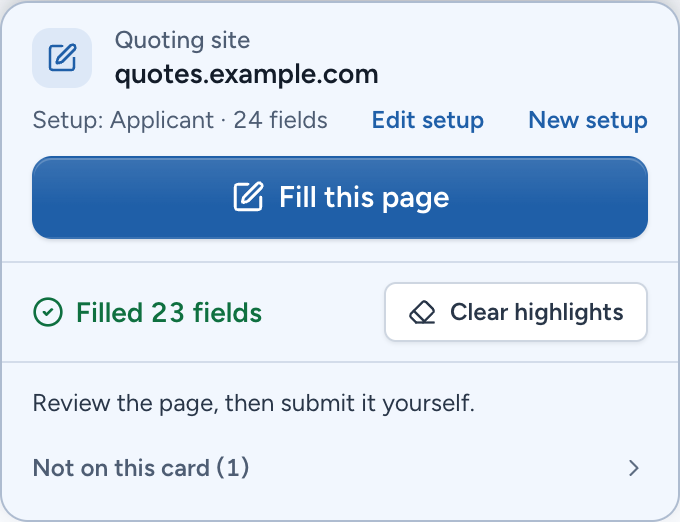
What you see after a Fill:
- Filled fields get a green outline. Fields under Needs attention that are on the page get an orange outline, except a field the site rewrote after ClientClip filled it, which stays green. A field ClientClip couldn't find, or one hidden on the page, gets no outline.
- Needs attention says how many fields need you, for example "Needs attention (3)". Click it to open the list, and again to fold it. Each field in it has its value on a button: click it to copy the value. If the list is long, scroll inside the Fill box.
- Not on this screen counts the fields set up on another step of the quote, on a site that keeps one address for every step. Click it to see their names. They fill when you click Fill this page on their step. ClientClip tells a step's fields by the heading they were set up under, or by the part of the page they sit in. If a whole step's fields stop filling when you are on that step, open Not on this screen to check they aren't listed there, and ask an owner or admin to set them up again.
- Clear highlights, at the top right of the results, takes the outlines off the page and closes the Fill box again. It stays there while you scroll a long list.
- The Fill box stays at the bottom while you scroll the card. Owners and admins also see Edit setup and New setup there.
The Fill box also counts fields Fill left as they were, one line each, such as "Not on this card (3)". Click a line to see the fields' names, and again to fold it:
| Line | What it means |
|---|---|
| "Filled from the home address (2)" | A site's mailing address boxes, filled from the home address because the card has no different mailing address (the answer is No or was left blank, with no Not sure mark). A vehicle's garaging address boxes are filled the same way when the card says it's kept at the home address. Check them. |
| "Not on this card (3)" | The card has nothing for these fields, so ClientClip left them alone. |
| "Left alone for these answers (1)" | The page setup says to leave these fields alone for the client's answer. |
| "Left alone, field deleted (1)" | The page setup points at a field your office deleted for good. |
| "Left alone, needs an update (1)" | A newer version of ClientClip set these fields up: see When you need a newer version. |
If the site hides or locks its mailing or garaging address boxes, for example once its "same as" box is checked, nothing needs doing and they aren't listed.
| Message | What to do |
|---|---|
| "This page isn’t set up yet. Your agency’s ClientClip owner or an admin can set it up for everyone." | Ask your owner or an admin to set the page up. |
| "ClientClip couldn’t fill this page. Try reloading the page, then Fill again." | Reload the page, then click Fill this page again. |
When a page has more than one setup
Some sites keep one address for every screen of a quote and for every line. Your office can then have a page setup for each line on that page, such as "Auto", "Home" and "Boat". ClientClip picks the right one for you most of the time:
- The client quotes one line. Only that line's page setup fits, so the Fill box says Fill with Home, with Change beside it.
- The client quotes more than one line, such as Auto and Boat. The Fill box asks "Which setup is this page?", and Fill this page works anyway: ClientClip looks at the page when you click it. On a screen every line shares, such as the named insured, it fills that screen, then checks again on the next one. On a screen only one line has, such as the vehicle or boat screen, it uses that line's page setup and the box says Fill with Auto.
Each time you click Fill, ClientClip checks the page first. If you moved on to another of the client's lines in the same quote, such as from the vehicle screen to the boat screen, it fills with that line's page setup and says "Filled with Boat, which this page matches." If the page shows a line the client isn't quoting, or it can't tell, it fills nothing and asks. When one page setup fits the page better than the others, it's listed first, marked Best match; you still choose.
You can always choose: click Change next to the page name, then click a page setup. Your pick stays for that tab until you click Change, open another client, or the tab goes to another page address. You're also asked again after you close the tab or the side panel, or when that page setup is deleted.
| Message | What to do |
|---|---|
| "This page doesn’t match Home. Pick the setup it matches." | The page shows another page setup's fields. Nothing was filled. Click the right page setup (the one found on the page is listed first, marked Best match), then fill again. If you're sure, click the same one again and fill: ClientClip uses it on this screen. |
| "This page looks like Home. This card has no line for it." | The page shows a page setup for a line this client isn't quoting. Nothing was filled. Check you're on the right client and screen. To fill anyway, click that page setup, then fill again. |
| "Pick the setup this page matches." | ClientClip couldn't tell which line this screen is. Nothing was filled. Click the right page setup, then fill again. |
| "This screen isn’t set up yet. Nothing was filled." | None of the page setups for this page have fields on this screen. Fill it yourself, or ask your owner or an admin to set it up. |
| "Filled with Boat, which this page matches." | ClientClip moved to the page setup for the screen you're on and filled with it. Check the page as usual. |
| "This page matches Boat. Check the choices, then click Fill." | That page setup asks which boat, driver or vehicle to fill. Pick it next to the button, then click Fill with Boat. |
Owners and admins add a page setup for another line with New setup: see More than one setup for a page.
Picking a boat's engine
For a boat's engines, pick the boat first: Engine on this page then lists only that boat's engines. A page showing two boats side by side has an engine choice for each boat with more than one engine, such as Boat 2 · Engine.
Fill uses the card as it's saved
ClientClip fills the card as it is now, with the changes saved to it (see Changing a client's card). While you have a change on the card that isn't saved, Fill this page looks faded and says "Save or cancel your changes first."
Click Save or Cancel on the card first. Clicking the faded button takes you to your change. Set up this page, Edit setup and Fix in setup wait the same way.
What Fill types into a quoting page is on that page like anything you type there. Chrome may keep it in its own files for reopening tabs after a restart, whatever ClientClip stores, and ClientClip has no say over those.
What Needs attention means
Each field Fill couldn't finish is listed under Needs attention with a message. Owners and admins also see Fix in setup on most rows: it opens Which value goes here? on that field in setup, and the list clears. It isn't offered on a row where you pick a choice instead, or when the problem is the client's date, a part of the page ClientClip can't reach, a paused site, or a locked or hidden field.
If you're on staff, you won't see Fix in setup. Some messages tell you to ask your owner or an admin instead.
| Message | What to do |
|---|---|
| "No matching choice on the page. Pick the right one:" | Pick the right choice in the list under the message, and click Fill with this. Leave Remember for this site checked to have it filled on its own next time: see Remember for this site. |
| "Couldn’t tell whether to check this box:" | Click Check the box or Leave the box unchecked. Remember for this site works the same way. |
| "The choice matched in setup isn’t on the page any more. Pick the right one:" | The site changed its list. Pick the right choice there, the same way. |
| "The field is hidden on the page right now." | Answer the question that shows it, then click Fill this page again. A "same as garaging" checkbox can be filled for you: see Match the answers. |
| "Couldn’t find this field on the page." | The site changed, or you're on a different page than the one set up. If the field is on this page, click Fix in setup: see Point a setup at the right field. If you're on staff, the message says "Couldn’t find this field on the page. If it’s there, ask your ClientClip owner or an admin to fix it in setup." |
| "More than one field on the page looks like this one. Set it up again." | Click Fix in setup, then click the right field on the page, the same way. If you're on staff, the message says "More than one field on the page looks like this one. Ask your ClientClip owner or an admin to fix it in setup." |
| "This field is in a part of the page ClientClip can’t reach right now." | If the Fill box also says "Part of this page comes from …, which ClientClip can’t reach yet.", click Allow on (site name) there, then Fill this page again (no need to reload). Otherwise, answer the question that brings that part up, or wait for it to load, then fill again. If it still says so, the site changed that part: click Edit setup and pick the field again (on staff, ask your owner or an admin). |
| "This field is on a site where filling is paused." | That part of the page comes from a site where ClientClip doesn't fill. Click the value's button to copy it, and type it in yourself. |
| "The field is locked on the page." | The site won't let anything be typed or picked there right now. Some sites unlock a field once another question is answered: answer it, then click Fill this page again. If the site fills the field itself, check what it put there. |
| "Filled, but the page changed the value. Check it." | The site rewrote what ClientClip filled (spacing, dashes and capitals don't count). If it's still right, written the site's way (such as "Street" shortened to "St"), leave it. If it's wrong or cut short, copy the value and type it in. If the format is wrong for this site, an owner or admin can pick a different one in page setup. |
| "The page didn’t accept this value." | The site rejected the format. Type it yourself. If the format is wrong for this site, an owner or admin can pick a different one in page setup. |
| "This field needs a date or number in a different format. Pick another format in setup." | Click Fix in setup and pick another format. If you're on staff, the message says "This field needs a date or number in a different format. Ask your ClientClip owner or an admin to change it in setup." |
| "The client’s date isn’t a real date. Check it with the client and type it in." | The request has a date that doesn't exist, like 13/40/2020 or February 30. Check it with the client and type the right date in. |
| "Too long for this field (20 characters max). Pick a shorter format in setup." | Click Fix in setup and pick a shorter format, such as the middle initial instead of the middle name. If you're on staff, the message says "Too long for this field (20 characters max). Ask your ClientClip owner or an admin to pick a shorter format in setup." |
Point a setup at the right field (owners and admins)
- Click Fix in setup on the row. ClientClip says "Click the right field on the page to use it instead."
- Click that field on the page. The value stays, and the saved field now points there.
Its answer matches stay if it's the same kind of field. If not, they go, and for a dropdown, radio buttons or a checkbox Match the answers opens. Clicking a field that's already set up opens that field instead, and Cancel changes nothing.
Remember for this site
When you check Remember for this site and click Fill with this, ClientClip fills that answer on its own next time, on every computer in your office. What you check is saved for your whole office.
Owners and admins can always remember. Staff can while Staff can remember matches is on. If you're on staff and there's no Remember for this site, it's off (see Your setups on other computers): tell your owner or an admin the right choice instead.
| What the box says | When to check it |
|---|---|
| Remember for this site | Leave it checked. |
| "Remember for this site (only if this is just the company’s name)" | For an insurance company. It starts unchecked. Check it for "Allstate", but not for "Progressive – Jordan Example": ClientClip can't tell a person's name from a company's. |
| "Remember for this site (only if it names no one)" | For a typed occupation, how they heard about you or a business-use company. It starts unchecked. Check it for "Accountant", but not for "Jane Doe" or "Nanny for Jane Doe". |
| "(this answer can’t be remembered: it may be personal)" | The box is greyed out: the answer may be personal, so it's never remembered. |
Office fields: when a site's dropdown has no matching choice for an office field's answer, Remember for this site starts unchecked. Check it to use the same choice the next time a client gives that answer. A typed answer, such as text or a number, is the client's own, so it's never remembered: the box is greyed out.
An answer is never remembered when it has:
- a client's name, a phone number or a date
- an "@", a "#", a long number, or words like "my", "ex", "mi esposo", "job" or "agent"
- more than 5 words, for an insurance company or an occupation
- more than 5 words, an apostrophe or "my", for a vehicle's year, make or model
For a state, ClientClip only remembers the state itself, "Other", "Other state" or "Never licensed". What a client typed in an "Other" box is only remembered for the insurance company, when it looks like just the company's name and you check the box.
A remembered answer is saved with your office's page setups, for everyone in your office, with nothing saying which client it came from. The answers your form lists, and a state, are saved as which answer they are. Other answers are saved word for word as the card has them: an insurance company, an occupation, how they heard about you, a business-use company, a vehicle's year, make or model (as typed, or what the VIN lookup says), and who at your office the quote goes to.
To take a remembered answer back, an owner or admin removes the field in setup and sets it up again (see Change or remove a field). It's gone from ClientClip at once, though ClientClip's backups can still hold it for up to 35 days.