 ClientClip help
A page setup tells ClientClip which value goes in each field of one quoting page; you make it once, and it works for every client and everyone in your office.
Staff then fill the pages you set up: see Filling a quoting site. Allow ClientClip on the site first, the same way staff do: see The first time on a site.
Mapping fields
Mapping a quoting site's fields is called page setup in ClientClip: you choose which value goes in each field of a page.
- To map a page, see Set up a page.
- To choose the right value for a field, see Which values go with which line.
Set up a page (once per page, for all clients)
Only owners and admins see Set up this page, Edit setup and Fix in setup. On a page nobody has set up yet, staff see "This page isn’t set up yet. Your agency’s ClientClip owner or an admin can set it up for everyone."
Before you start:
- You don't need a client open. With none open, the Fill box (Quoting site) sits at the bottom of the client list, so you can set pages up before your first quote request comes in. Until your office has a page setup, it says "On a quoting site, click the ClientClip icon to set it up." on any site ClientClip can't use yet.
- With a client open, you see their values as examples. Nothing about the client is saved.
- If the Fill box isn't there, click the ClientClip icon in the browser toolbar while you're on the site.
- If the button is faded and says "Save or cancel your changes first.", click Save or Cancel on the card first.
- Go to the page you want to set up, such as the site's driver page.
- Click Set up this page (or Edit setup, for a page already set up, or New setup for another line on the same page: see More than one setup for a page). A blue band at the bottom of the page says "ClientClip setup: click a field. Hold Alt/⌥ to answer one yourself. Esc when done." When the mouse comes near the band, it moves to the top of the page (and back again).
- Click a field on the page (or press Enter on it). The side panel asks Which value goes here?, and the field keeps a solid blue outline until you choose its value or cancel. The band says "Choose its value in the panel."
- Click the value that goes there. Suggestions are at the top; you can also search, for example "birth" or "zip".
- Match the answers of a dropdown, radio buttons or a checkbox: see Match the answers. The band says "Match the answers in the panel."
- Repeat for every field you want filled. Each field set up shows a green outline with its value name, and saves as you go.
- Click Done at the top of the side panel (or press Esc on the page; if the site used that Esc, for example to close its own pop-up, press it again). The side panel goes back to the card, or to the client list if you started there.
Tip
You can go to the site's next page and keep setting up there. Hold Alt (⌥ Option on a Mac) as you click only to answer a question yourself, such as "Currently insured? Yes", so more fields appear.
You can look at another tab, or open Settings, part-way through. Setup waits as it is, and the side panel says "Go back to the (site) tab for “(page setup)”." until you do. Closing the site's tab, or moving it to another window, ends setup.
| Message | What to do |
|---|---|
| "This field looks the same as another, so ClientClip can’t fill it." | Skip that field. Whoever fills the page types its value. |
| "Matches 2 fields here" (under a field in the list) | Two or more boxes on the page fit what was saved for that field (some may be hidden), so Fill skips it. Click Remove, then click the right box on the page and choose its value again. |
| "Same driver on 3 fields" (under a field in the list, or a suggestion) | The page shows several drivers at once, and these fields are all set to one of them, so Fill puts the same driver in each. Click Change on each field and choose its own driver's number. The message names the item: vehicle, property, loss and so on. |
| "Driver 2 has its own field" (the same places) | This field fills the driver you pick when filling, and another field is set to Driver 2. Pick Driver 2 and both get the same answer. Click Change and choose this field's own driver number. |
| "This setup’s other fields are for another line." (under the name, after you choose a value) | The field is saved. Its value belongs to a different line of insurance than the page setup's other fields, such as a vehicle's value in a Home page setup. If that's not what you meant, click Change on the field and choose again. The message goes on your next click. |
| "Not saved: the tab was closed." | The site's tab closed with suggestions accepted or answers matched but not saved. Open the page again and redo them. |
| "Not saved: the tab moved to another window." | The same, after the site's tab was moved to another window. Set the page up again from that window's side panel. |
| "Not saved: page setup stopped on this site." | Setup was paused on the site part-way through. Nothing more can be set up there until it's allowed again. |
| "No room to save it: a page setup holds at most 300 fields." | Remove a field you don't need to make room. |
What the setup screen shows
- The page setup's name stays at the top as you scroll, with Rename beside it and Done on the right. Under the name: the site, how many fields are set up, and "Saving…" or "Saved". When some of them are on another screen of the page, it says how many of them are on the screen shown instead, such as "5 of 9 on this screen". Done looks plain until a field is set up, but you can click it any time.
- On a page with no fields yet, Suggest setup comes first (see Let ClientClip suggest a setup), then "Or click a field on the page, and choose what goes in it." and three short steps.
- On a page with fields, "Waiting for you to click a field on the page…" comes first, then Suggest setup, and the steps fold away under How to set up a page. Click it to see them again.
- When the site loads its next screen, that line says "New screen: click a field to set it up." until you click a field.
- When the site goes to another page, setup says which page setup it's on now, such as "Now setting up “Drivers”."
- The field you just set up is highlighted in the list, and the list scrolls to it if it's out of sight. Fields on another screen of the page come last, under Not on this screen.
- On the page, fields light up as you move the mouse.
- The tip with the steps says "Links and buttons work as usual. To answer a question on the page yourself, hold Alt (⌥ Option on a Mac) as you click it."
Which values are listed
- With a client open, each value shows that client's value. A value with several formats, such as Date of birth, lists them together under its name, each with the format it uses, such as
MM/DD/YYYYorYYYY-MM-DD. As answered is the client's own answer, with no change. - Parts of one answer are together too: Year, make and model has As written (all three in one field), Year, Make and Model.
- Roof last replaced fills from whichever the client's card has: the year Homeowners and Dwelling fire ask, or Manufactured home's year or Original. A field for the year alone stays blank for Original or Not sure.
- Only the values of the lines your office quotes are listed: the lines your plan includes and your office has turned on, whether or not a client of that line has come in yet.
- You turn lines on and off under Lines your office quotes, at the top of Settings → Quote forms. It's there however your office's quote requests come in, with or without Jotform.
- Values for, under the search box, says whose values the list shows: the line the page setup's other fields are for or, before it has any, the open client's line. Click Change to choose another line, or All lines. Your choice stays until you leave this page setup. An office with one line doesn't have it.
- Values every line uses, such as the client's name and address, are always listed. The rest are under Other lines, closed, each with its group and lines. Search looks there too.
- Values are listed in groups, such as Applicant, Driver and The property, each with how many values it has. Click a group to open it. In Suggested, each value's group is named under it.
- Values several lines share (the name, birthday, email, home address…) are listed once, so one page setup works for every kind of client.
- Your office's own questions are under Office fields: see Office fields below.
To find the right group for a field, see Which values go with which line.
If ClientClip says "ClientClip can’t fill this kind of field. Copy its value from the card.", skip that field. Whoever fills the page copies its value from the card.
Office fields
Your office's own questions, kept in Settings → Office fields (see Office fields), can be set up and filled like ClientClip's values.
- Setting up a page: click a field on the site, open Office fields at the bottom of Which value goes here?, and choose the field. A field on a driver, vehicle or other item is numbered like ClientClip's own values, such as Driver N › Years licensed. Suggested at the top can list an office field whose label matches the site's field.
- A field that repeats on its own is named with the answer it fills, such as Pet name 2. To fill another answer, choose its number with Which answer, 1 to 10, in Office fields, before you choose the field. On a page that asks the question in rows 1, 2, 3, a field you click starts on its own row's number. The list then names it the same way, such as "← Office fields › Pet name 2".
- A removed field leaves Which value goes here?, but pages already set up with it still fill it. Bring back puts it back in the list.
- A field deleted for good leaves your office's page setups too; click Refresh to see it gone. If a page setup still points at one, such as a copy made before the delete, the list shows "← Deleted field": click Remove, or choose another value. Fill leaves that box alone and says "Left alone, field deleted: (field)".
Numbered items
Drivers, vehicles, properties and anything else a client can have several of are numbered items. When Suggested lists a value on a numbered item, such as for a field under a driver's heading, the choice is folded under the search as "Driver: the one you pick when filling": click that line to open it. For any other field, open the item's group, such as Driver: its first line says how its items are numbered, with Change to show the choice right there. When one number would cover several kinds of item, the line says "Numbered items" instead, as the number applies to all of them.
When a number is fixed, the line opens by itself and says so, such as "Driver: always driver 2". For an item inside another, such as a boat's engine, it can say "Boat: numbers set below".
On a page that lists every item at once, ClientClip reads the number from the row or heading of the field you click. Click a field in row 2 of a list of drivers, and the line already says "Driver: always driver 2", folded: click it to change the number. A form shown inside another part of the page, such as a lienholder's under a "Vehicle 2" heading, starts on that heading's number too, and its suggestions follow the heading: a field there that says only "Address" lists the lienholder's address first. That number is the row's own item's and for that field only: other items in the list keep your choice, and the next field you click starts on its own row's number, or on the choice you had before.
| Choice | Use it for |
|---|---|
| The one you pick when filling | Pages that show one item at a time. Set the page up once, and staff fill it for Driver 1, then Driver 2, and so on. On a Homeowners card with more than one property, Fill asks which one with Property on this page. |
| Always driver … (or vehicle, property…) | Pages that list them all at once, such as Property 1 and Property 2 side by side, or a row for every driver. Each row's fields start on their own number where the page's words show it, such as rows numbered 1, 2, 3 under a "Drivers" heading; set the number yourself where they don't. The numbers go as high as the items on your office's lines do. |
Match the answers
For a dropdown, radio buttons or a checkbox, ClientClip shows Match the answers after you choose the value. It lists every answer ClientClip offers for that value across your office's lines, each with the site's matching choice, and says "Pick the site’s choice for each answer." A count shows how many are matched, such as "5 of 7 matched".
- Check each choice marked "Suggested", and change any that's wrong.
- Choose for each answer in yellow, marked "Not matched". You can also choose Leave the field alone for an answer.
- Click Save matches (or Skip for now).
- A checkbox says "Pick what the box does for each answer." Choose whether each answer checks the box. For "Mailing address is the same as the garaging address", choose the value Addresses → Different mailing address: "Yes" leaves the box unchecked and "No" checks it.
- An answer left at "Not matched" is guessed when staff fill the page. If that fails, ClientClip asks them.
- To change the matches later, click Match answers beside the field in the list. You can also click the field on the page and choose Match answers.
- A change in how your form words an answer doesn't break your matches: ClientClip saves which of the form's answers each choice is for, not the form's exact words.
| Message | What to do |
|---|---|
| "Your answer matches aren’t saved yet. Click Save matches or Skip for now." | The list shows matches that aren't saved, suggested or changed, and you clicked Done, pressed Esc or clicked another field. Click Save matches or Skip for now. |
| "Not saved: the page changed." | The site went to another page before you saved. Click Match answers beside the field and match its answers. |
| "Not saved: this field changed." | The field was removed or given another value while you matched its answers. If it's still in the list, click Match answers beside it again. |
| "Couldn’t save the answer matches. Try again." | The list stays open with your matches. Click Save matches again. |
| "Couldn’t find this field on the page." | Match answers needs the field's choices, and the page isn't showing the field now. Bring it back on the page, then click Match answers again. |
Some values have no Match the answers list, because the answers are your office's own words on its form (the states, the insurance companies in "Homeowners Insurance Company", "How did you hear about us?") or the client types them (an occupation, the current insurance company). A state fills the site's state list by itself when the list shows it as two letters or spelled out ("NJ" or "New Jersey"). Anything else is matched the first time it comes up when someone fills the page: see What Needs attention means.
Change or remove a field
Further down the setup screen, Fields set up on this page lists each field with its value, with Change and Remove beside it. Fields on the screen you're on come first; those on another screen of the page come after, under Not on this screen. To see which field a row means, rest the mouse on the row or move to it with the keyboard: ClientClip outlines the field on the page.
- Change opens Which value goes here? on that field, even when it isn't showing on the page right now.
- For a dropdown, radio buttons or a checkbox, the list says how many answers are matched, such as "Answers matched: 4 of 6", with Match answers beside it.
- You can also click the field on the page: its value is listed first, marked In use, with Match answers and Remove above the list.
- To remove a field, click Remove, then Click again to remove (how the second click works). ClientClip says "Removed: (field)".
- To take back an answer someone remembered for a field, remove the field and set it up again: see Remember for this site.
Important
Removing a field saves straight away, for everyone in your office.
Other parts of the setup screen
- Rename, next to the name at the top, lets you give the page setup a clearer name than the one ClientClip gave it from the address, such as "Drivers". Type it and press Enter (clicking away saves it too); Esc keeps the old name. ClientClip says "Name saved". On a page with no field set up yet, the name is kept and saves with the first field. Page setups for one page address need different names. A new page setup whose name is taken gets a number, such as "Home 2"; rename it if you like.
- Setup details, at the bottom, opens the page address, with the parts that change from client to client replaced by
*. You rarely need to change it. If you do, edit it and click Save next to it; ClientClip says "Page address saved". - Delete this page setup, in Setup details, deletes the whole setup for everyone. Click it, then Click again to delete this page setup. Other page setups for the same page address stay.
| Message | What to do |
|---|---|
| "That doesn’t match the page that’s open now." | The address has to match the page that's open now. Edit it so it does. |
| "“Auto” uses this address too. Staff will pick between them." | Shown under the address box while another page setup has the address typed. Save keeps both, and staff pick between them when they fill. To use only one, delete the other. |
| "Another setup on that address has this name. Rename it first." | Click Rename at the top, give this page setup another name, then save the address again. |
| "Another setup for this page has that name." | Shown under the name box. Type a name the page's other page setups don't have. |
| "Choose a different name." | Shown under the name box. A page setup's name can't hold the open client's name, a phone number or a date, so type another. |
More than one setup for a page
Some sites keep one address for every screen of a quote and for every line, so one page setup can't cover them all. Give each line its own page setup on that page, such as "Auto", "Home" and "Boat". When staff fill, ClientClip uses the one for the client's line, or the one whose fields it finds on the screen: see When a page has more than one setup. To help it tell lines apart, set up each line's own fields on its own screens, such as the VIN on the vehicle screen and the hull ID on the boat screen, not only the fields every line shares.
- Go to the page, with or without a client open.
- Click New setup (next to Edit setup, or under the question once the page has more than one). An empty page setup opens on the same page address.
- It opens with its name selected: type one, such as "Home", and press Enter.
- Set up its fields, then click Done. With a client open, the Fill box now says Fill with Home.
To change one of them, Edit setup opens the one the Fill box names, and the Fill box goes on picking as before, so Fill still follows the client's lines. To edit another, click Change, click that one, then Edit setup. With no client open, clicking a page setup under that question opens it in setup. Delete this page setup deletes only the one open. If setup's tab goes to a page with more than one page setup, setup carries on with the one the Fill box would fill with.
If the page shows the fields of another page setup for the same page address, and none of the one you're editing, setup says "This screen matches “Auto”. Check you’re editing the right setup." It never stops you: if you meant to set up this screen in this page setup, carry on. Otherwise click Done, choose the other page setup and click Edit setup. A screen every page setup shares, such as the applicant's name, never shows this.
If two people set up the same empty page at once, it gets two page setups, such as "Home" and "Home 2". Delete the one you don't need.
A page setup whose address covers many pages and one made for just one of them (a longer page address) aren't a choice: ClientClip uses the longer one without asking.
| Message | What to do |
|---|---|
| "This page has more than one setup. Pick one to carry on." | Setup stopped: the tab went to a page with more than one page setup, and the Fill box can't tell which one it is. Click the right one, then Edit setup if a client is open. |
| "Not saved: this page setup was deleted." | Someone deleted the page setup you were changing, so what you hadn't saved is gone. Set those fields up again. |
Which values go with which line
Which value goes here? lists values in groups. Most groups belong to one line or a few, so the group to choose depends on what the site's page insures. Check Values for first: the list shows that line's groups, and All lines shows every group.
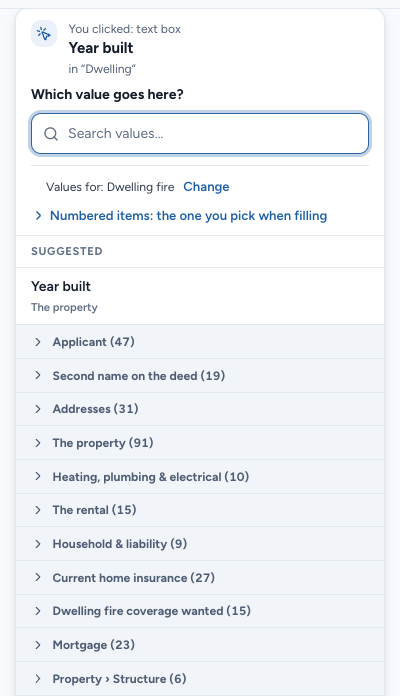
Each value under Suggested names its group under it, and its lines too when Values for is another line. Read it before you click: the same word, such as Year, is in several groups.
The rule: choose the group named for what the field is about, in ClientClip's words, not the site's. A field about a building you insure goes under The property, even when the site calls the building a "location" or a "risk".
Important
Location is for Inland marine only: a place away from home where a client keeps valuables, such as a storage unit. For a rental house, a second home or any other building being insured, use The property.
When a site says "location"
Many property sites call the insured building a location. ClientClip's suggestions go by the site's words, so on those fields they can point at the wrong group.
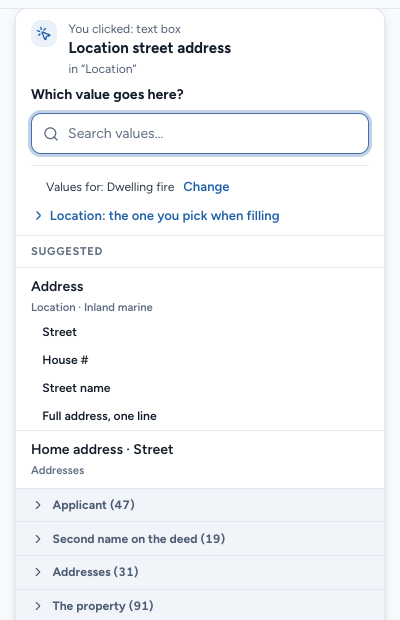
- In Which value goes here?, Suggested can list Address values marked Location · Inland marine first. Don't click them. Search for "property address" and choose from The property.
- In Suggest setup, the same fields can show as Location N › Address, marked Maybe under Still to check. Click Change on each and choose The property → Property address in the same format.
- Already saved one? Click Change beside the field under Fields set up on this page, and choose the right value.
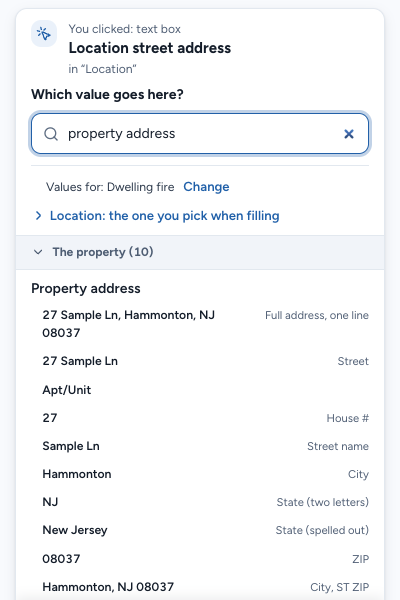
A field set up with Location stays empty for a client with no Inland marine request. For one who has it, the field fills with a place their valuables are kept, not the building.
Groups every line uses
| Group | What it holds |
|---|---|
| Applicant | The client: name, birthday, email, phone and the like |
| Addresses | Where the client lives and gets mail: Home address, Mailing address, Prior address |
| Second name on the deed | The second person on a request. Every line but Auto and Motorcycle has it |
| Loss | A past claim |
| Notes & comments | Comments, how they heard about your office, and who referred them |
| Office fields | Your office's own questions: see Office fields |
If your office quotes none of Homeowners, Condo, Dwelling fire or Flood, Second name on the deed is named Second person on the policy instead.
Vehicles and boats
| The page is about | Line | Groups to use |
|---|---|---|
| A car or truck | Auto | Vehicle, Driver, Current auto insurance, Auto coverage wanted, Business / delivery use, Medical coverage |
| A motorcycle | Motorcycle | Vehicle, Driver, Current motorcycle insurance, Motorcycle coverage wanted |
| An RV | RV | Vehicle, Driver, Current RV insurance, RV coverage wanted |
| A travel trailer | Travel trailer | Vehicle, Current travel trailer insurance, Travel trailer coverage wanted |
| A boat | Watercraft | Boat, Engine, Storage and use, Driver, Current boat insurance, Watercraft coverage wanted |
- Vehicle is a car, a motorcycle, an RV or a travel trailer, whichever the client's request is for. A boat is never a vehicle: use Boat.
- Driver is whoever drives, rides or operates it. A boat's operators are under Driver too.
Homes and other buildings
Every line here uses The property for the building itself. What changes is who lives there and which groups come with it.
| The page is about | Line | Groups to use |
|---|---|---|
| A home the client owns and lives in | Homeowners | The property, Heating, plumbing & electrical, Household & liability, Current home insurance, Home coverage wanted, Mortgage, Structure, Scheduled item, Animal |
| A house the client owns and rents out | Dwelling fire | The property, The rental, The owner as a landlord, Heating, plumbing & electrical, Household & liability, Current home insurance, Dwelling fire coverage wanted, Mortgage, Structure, Animal |
| A place the client rents to live in | Renters | The property, Heating, plumbing & electrical, Household & liability, Current home insurance, Renters coverage wanted, Scheduled item, Animal |
| A condo unit the client owns | Condo | The property, The building & HOA, Heating, plumbing & electrical, Household & liability, Current home insurance, Condo coverage wanted, Mortgage, Scheduled item, Animal |
| A manufactured or mobile home | Manufactured home | The property, Heating, plumbing & electrical, Household & liability, Current home insurance, Manufactured home coverage wanted, Mortgage, Structure, Scheduled item, Animal |
| Flood cover on any of these | Flood | The property, Current flood insurance, Flood coverage wanted, Mortgage |
- Structure is another building on the property's grounds, such as a shed or a detached garage. It's never the home itself.
- Scheduled item is one valuable listed on the policy, such as a ring.
- Animal is one of the household's dogs or other animals.
Valuables and umbrella
| The page is about | Line | Groups to use |
|---|---|---|
| Jewelry, art, instruments and other valuables insured on their own | Inland marine | Scheduled item, Where the valuables are kept, Location, Large collection, Current valuables insurance, Inland marine coverage wanted |
| An umbrella policy over the client's other policies | Umbrella | Current umbrella insurance, Umbrella coverage wanted, Underlying policies, Household drivers, vehicles and homes, Activities and public profile, The property, Household & liability, Current home insurance, Driver, Boat, Animal |
- Where the valuables are kept is asked once per client: the ZIP, a safe and an alarm. Location is each other place they're kept, with its address and what's kept there.
- On an Umbrella page, The property holds each property's address, Household & liability its pool, trampoline and business, and Current home insurance its company and liability limit.
Names that sound alike
| Group or value | What it holds | Not for |
|---|---|---|
| Location | A place away from home where valuables are kept. Inland marine only | A rental house, a second home or any building being insured: use The property |
| The property → Property address | The address of the building being insured | Where the client lives, when that's somewhere else: use Addresses → Home address |
| Addresses → Home address | Where the client lives. For a Homeowners client, it's the first property on the card they live in that isn't a second home; otherwise, their mailing address | A rental house's address |
| The rental | Whether a house the client rents out is rented now, its lease and its property manager. Dwelling fire only | A place the client rents to live in: that's Renters, under The property |
| The owner as a landlord | The client as a landlord: how many rentals they own, and for how long | Anything about one rental house: use The rental |
| Structure | Sheds, garages and other buildings on the property's grounds | The home itself: use The property |
| Scheduled item | One valuable | Where it's kept: use Where the valuables are kept or Location |
| Vehicle | A car, motorcycle, RV or travel trailer | A boat: use Boat |
| Driver | A driver, a rider or a boat's operator | The client's own details, when the page asks for the applicant: use Applicant |
A property's groups go together
A property is one numbered item, and these groups are all parts of it:
- The property
- Heating, plumbing & electrical
- The building & HOA
- The rental
- Household & liability
- Mortgage
- Current home insurance and Current flood insurance
- The coverage wanted on it, such as Home coverage wanted or Dwelling fire coverage wanted
- Structure, numbered inside its property
So one choice covers them all. With The one you pick when filling, staff pick the property once with Property on this page, and every one of these groups fills from that property: see Numbered items.
Current insurance and coverage wanted
Each kind of policy has its own Current … insurance group and its own … coverage wanted group. Pick the one for the policy the page quotes.
| The page quotes | Current insurance group |
|---|---|
| Auto | Current auto insurance |
| Homeowners, Renters, Condo, Dwelling fire or Manufactured home | Current home insurance, one for each property |
| Flood | Current flood insurance, one for each property |
| Motorcycle | Current motorcycle insurance |
| RV | Current RV insurance |
| Travel trailer | Current travel trailer insurance |
| Watercraft | Current boat insurance |
| Inland marine | Current valuables insurance |
| Umbrella | Current umbrella insurance |
A renter's or a landlord's current policy is under Current home insurance too, since it's the policy on that property.
Example: a rental property site
A landlord's quoting site asks about a house the client owns and rents out. That's Dwelling fire, so the building goes under The property and its renting under The rental.
| The site's field | Value to choose |
|---|---|
| Insured's name | Applicant → Name |
| Mailing address | Addresses → Mailing address |
| Location address, or property address | The property → Property address (see When a site says "location") |
| Owner occupied? | The property → Living in the home |
| Year built, construction, roof | The value of the same name under The property |
| Heating, wiring, plumbing updates | Heating, plumbing & electrical |
| Tenant occupied now? | The rental → Rented now |
| Lease term | The rental → Lease |
| Property manager | The rental → Property manager |
| Number of rentals owned | The owner as a landlord → Rentals owned |
| Pool, trampoline, dogs | Household & liability |
| Detached garage or shed | Structure |
| Current carrier | Current home insurance → Current company |
| Dwelling limit (Coverage A) | Dwelling fire coverage wanted → Dwelling amount wanted (Coverage A) |
| Prior claims | Loss |
Tip
Type a word in the search box, such as "rented" or "lease", to go straight to a value. If you don't see Dwelling fire's groups, check that the line is on under Lines your office quotes in Settings → Quote forms.
Let ClientClip suggest a setup
Instead of clicking every field, you can have ClientClip suggest a value for each field on the page, then check the suggestions.
- Go to the page and click Set up this page.
- Click Suggest setup. It says "ClientClip suggests what goes in each field. You check them before anything is saved.", then Reading the page… while it reads.
- In the Check the suggestions list, click Accept, Change or Skip for each field. A row you've decided shows Accepted or Skipped, with Undo to put it back as it was. An accepted row keeps Change for picking another value.
- Click Save, which says how many, such as Save 3 fields. You'll see "Saved 3 fields." at the top of the list.
- Click Match answers next to each dropdown, radio button or checkbox under "Still to do:": see Match the answers.
- Check the page.
- Click Done, or Close review to go back to setting up by clicking fields.
Nothing is saved until you click Save. Going to another page while the list is open clears what you accepted.
Tip
Click Accept all confident to accept every suggestion marked Confident at once.
What the list shows
- ClientClip reads every field you can see on the page that it can fill, including parts from other sites you've allowed. It reads the fields' names and the site's choices, never what's typed in them.
- At the top, until you save, it counts the fields To check (marked Maybe, or with no guess, and not decided yet), Confident, Already set and, when there are any, Not offered.
- Still to check, No guess and Confident come first, then Already set and the rest. They list fields under the page's own section names, and any others under "Other fields on this page".
- Change opens the same Which value goes here? list as setup. With a client open, it lists the values on their card first.
- On a page that lists every item at once, each row's suggestion has its own number, such as Driver 2 › License #. On a page that shows one item at a time it reads Driver N, the driver you pick when filling. An office field asked in rows gets each row's answer the same way, such as Pet name 2.
- Once every Confident row is decided, that group folds to one line, such as "Confident: 31 accepted" or "Confident: 30 accepted, 1 skipped". Click it to open it again.
- After you save, a dropdown, radio button or checkbox that has answers matched says how many, such as "Answers matched: 5 of 7", and Done takes Save's place as the main button. "Saved 3 fields." leads the list in place of the title and the counts.
| Group | What it means |
|---|---|
| Still to check | ClientClip's guess for the field, marked Maybe. Check each with care. |
| No guess | ClientClip couldn't tell what goes there. Click Change to choose a value. |
| Confident | ClientClip's guess for the field, marked Confident. |
| Already set | The field is already set up, and shows its saved value. If ClientClip would choose something else, it offers Use suggestion: (value): click it to change the field when you save. Accept all confident never changes a field that's already set. |
| Not offered | "ClientClip never keeps this kind of detail, so it isn’t offered." These fields ask for things like a Social Security, tax ID, bank or card number. ClientClip never fills them: whoever fills the page types them. |
| Can’t be told apart | "These fields look the same to ClientClip, so it can’t fill them." A setup could fill the wrong one, so whoever fills the page types them. |
Finding a field from the list
- To see which field a row means, rest the mouse on the row or move to it with the keyboard. ClientClip outlines the field on the page and scrolls to it.
- While the list is open, clicking a field on the page takes you to its row. A row you can still decide opens its Change list; any other row just comes into view.
- A field with no row does nothing when clicked, and neither does a click while Match the answers is open.
Good to know
- The suggestions come from the page's words and the lines your office quotes, not from any client, so they work with no client open.
- When you click Save, ClientClip reads the page again first. Everything is saved the same way as setting up by clicking, so nothing about a client is kept.
- With rows accepted, Close review first changes to Click again to close without saving (how the second click works).
| Message | What to do |
|---|---|
| "Your accepted fields aren’t saved yet. Click Save, or Close review to drop them." | You pressed Esc on the page; the list stays open. Click Save, or Close review to drop them. |
| "Not saved: the page changed." | You went to another page while the list was open, so what you'd accepted was cleared. Go back to that page, click Suggest setup and accept them again. |
| "No longer on the page." | The field went away before you saved, so it isn't saved. If it shows again, click it on the page to set it up. |
| "No room to save it: a page setup holds at most 300 fields." | That field isn't saved: the setup already has 300 fields. Remove a field you don't need to make room. |
| "There are no lines of insurance to suggest values from yet." | Suggest setup is off. Turn lines on under Lines your office quotes in Settings → Quote forms. |
| "Someone else changed the page setups. They’ve been reloaded; make your change again." | See Your setups on other computers. |
Your setups on other computers
Page setups and answer matches belong to your whole office. They show up on every computer where someone from your office signs in: when the side panel opens, whenever someone clicks Refresh (the round arrow at the top of the side panel), and within about 10 minutes while the side panel stays open. A page that isn't set up yet is checked sooner, within a minute or two. Signing out erases a computer's copy; it comes back at the next sign-in.
Each computer still asks once before ClientClip can use each site.
| Message | What to do |
|---|---|
| "Someone else changed the page setups. They’ve been reloaded; make your change again." | Two people changed setups at the same time. Nothing either of you saved is lost: make your change again. If you were both setting up the same new page, it then has two page setups: see More than one setup for a page. |
| "You need a newer version of ClientClip to change page setups. Your browser updates it by itself, so try again later." | Someone in your office uses a newer version. Fill pages as usual, and try the change again later. |
Settings → Quoting sites has three tabs:
| Tab | What's there |
|---|---|
| Allowed sites | The sites ClientClip may fill on this computer, each with Remove access: see Take access away from a site. |
| Page setups | Every page setup, by site, with how many each site has. Each shows its name, how many fields it has and its page address. Only the first site's list is open: click a site to open or fold its list. Owners and admins can also delete a setup: click Delete, then Click again to delete. |
| Options and files | Staff can remember matches (on unless turned off), and Page setup files. |
- Staff can remember matches saves as soon as you click it, and says "Saved for everyone in your office". Owners and admins can always remember.
- Export page setups, which anyone can click, saves a file named
clientclip-page-setups-(date).jsonto your Downloads folder. The file contains no client information. - Import page setups…, for owners and admins only, lets you pick such a file. ClientClip lists the setups in it and says how many will replace a setup already here: the same one, or one with its name for the same page address. The others are added. Click Import them to add them for everyone in your office, or Cancel.
- When a list has more than 8 sites, a search box shows above it (Search sites, or Search page setups by site or name), and the list shows 8 sites at a time, with page numbers under it. A search opens every site it finds.